IPHONE APP / HIGHLIGHT CAMERA
 CAM
CAM
Press the button at a good moment.
Only the moments around it are cut out and joined into one video.

On a computer?
Scan with your phone's camera
Scroll to explore
CAMPress the button at a good moment.
Only the moments around it are cut out and joined into one video.
On a computer?
Scan with your phone's camera
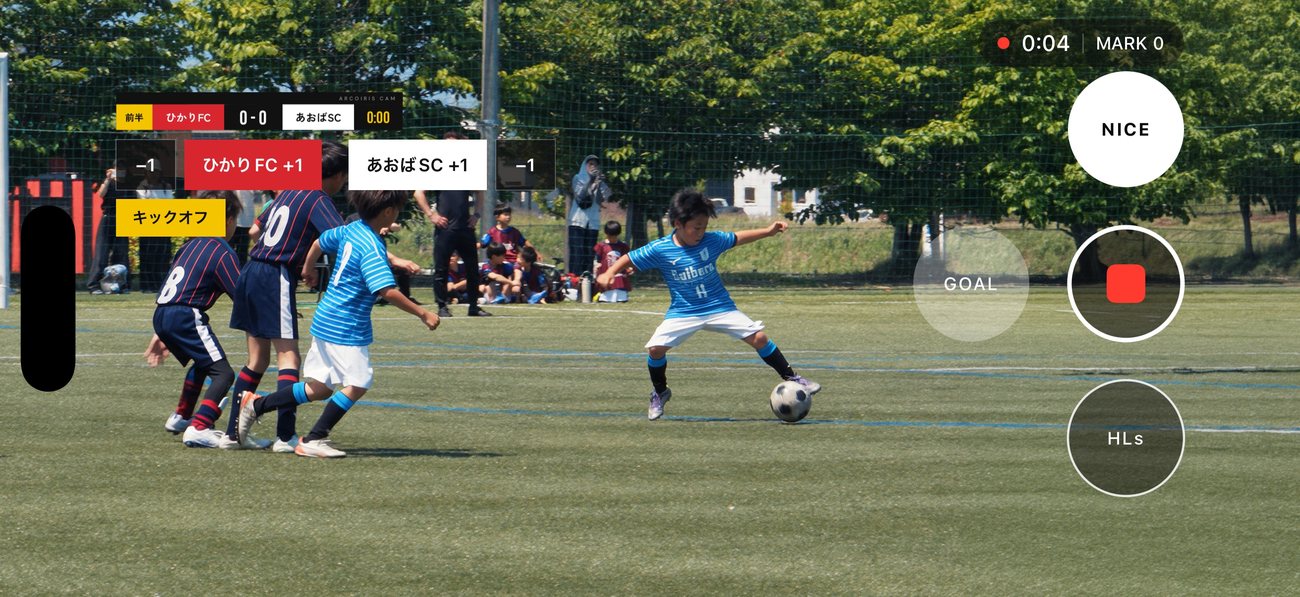
At a match or on a trip, the longer you shoot, the harder it gets to find the good parts. With ARCOIRIS CAM, you just press while you're recording. The moment you stop, only the moments you pressed are already joined together.
Just press one of the three buttons at the bottom of the screen. You can change how much to keep before and after in the settings. When you stop recording, the editor opens with your presses already joined in order.
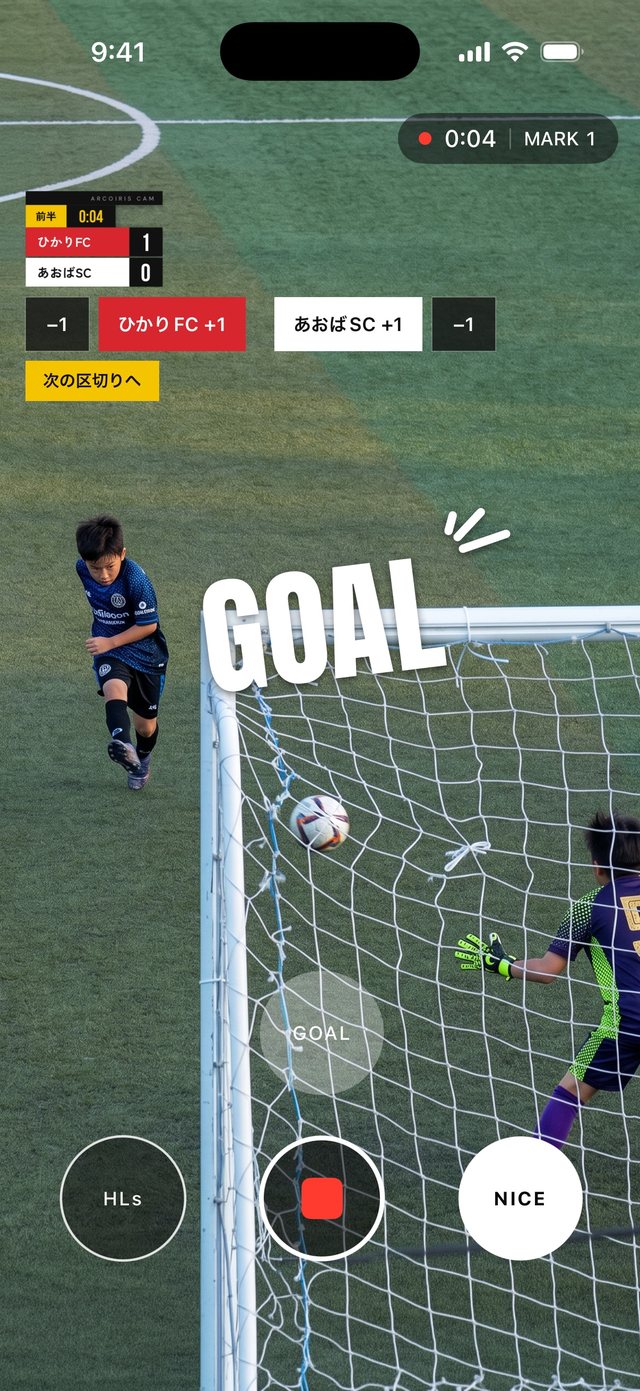
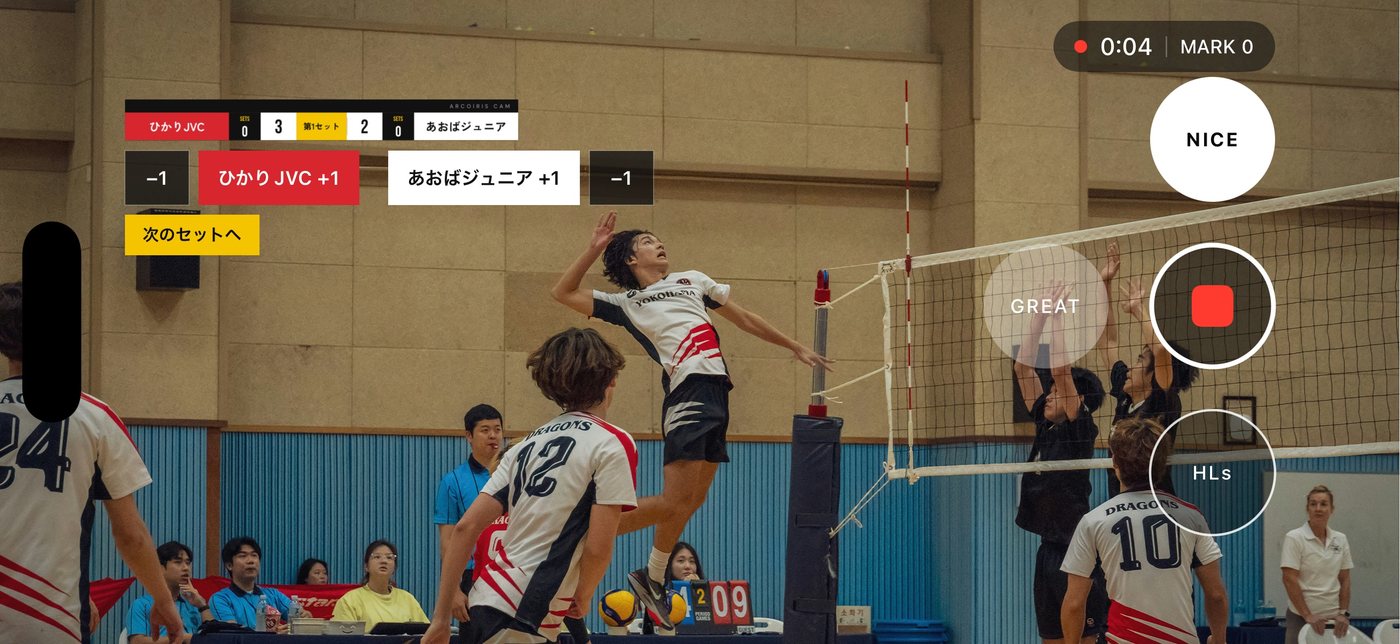
Burn a scoreboard for any of 13 sports into your video. Because the app records which side scored and when, the exported video shows the score as it was at that moment.
Stream live to YouTube and BAND (both at once, if you like). When you're not streaming, add color and titles and export to the Photos app.
SPORTS for matches, VLOG for everyday, PRO when you want to set everything yourself. Pick a mode on the camera screen. In every mode, you can add color, titles and sound after shooting, then export.
Cuts out just the moments around your press. Scores and the scoreboard are recorded as you shoot.
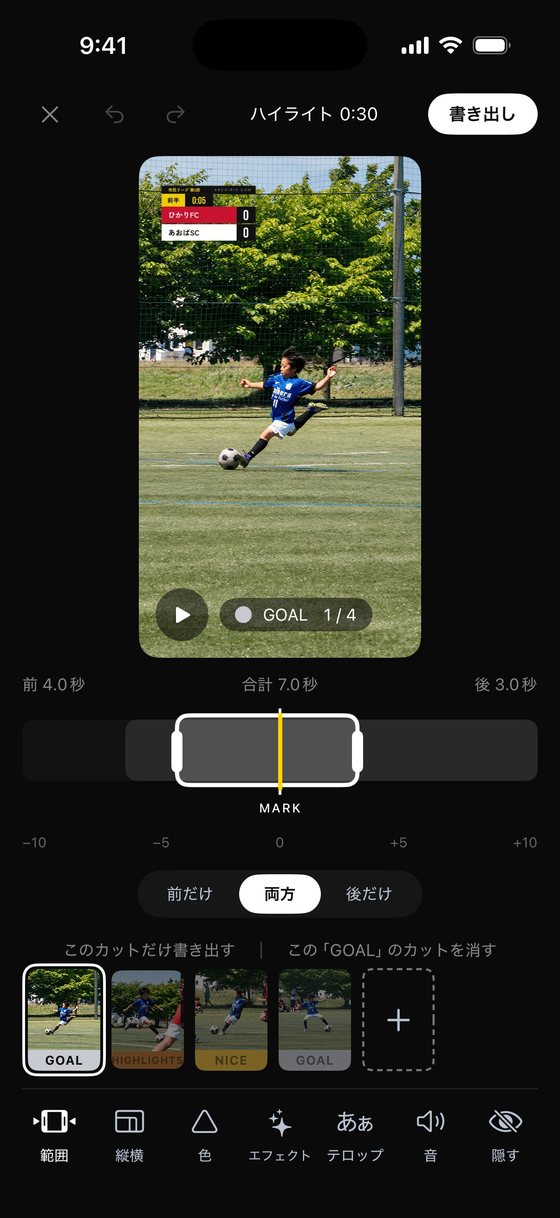
Press the button at a good moment and the app cuts out a few seconds before and after. By the time you stop recording, the moments you pressed are joined in the order you shot them. You can change the length before and after, one clip at a time, later.
Choose what each of the three buttons on the camera screen does. “HIGHLIGHTS” cuts out the moments around your press. “GOOD / NICE / GREAT” and sport-specific words put large text on the screen the moment you press, and cut out the moments around it. For example GOAL, SAVE and ASSIST in soccer; STRIKE, BALL, OUT, SAFE, HIT and HOME RUN in baseball; 3 POINT and DUNK in basketball. The text is kept in the clip and stays in the exported video.
Tap “+1” as you shoot and the exported video shows the score at that moment. Match clocks and tennis point counting are supported too.
Swipe left or right on the camera screen to switch between 13 film colors.
Swipe left or right and the look changes, with the color's name shown. You can also go back to no color.
In the editor you can mix the 13 film colors to make your own. They are the same 13 colors as ARCOIRIS COLORS.
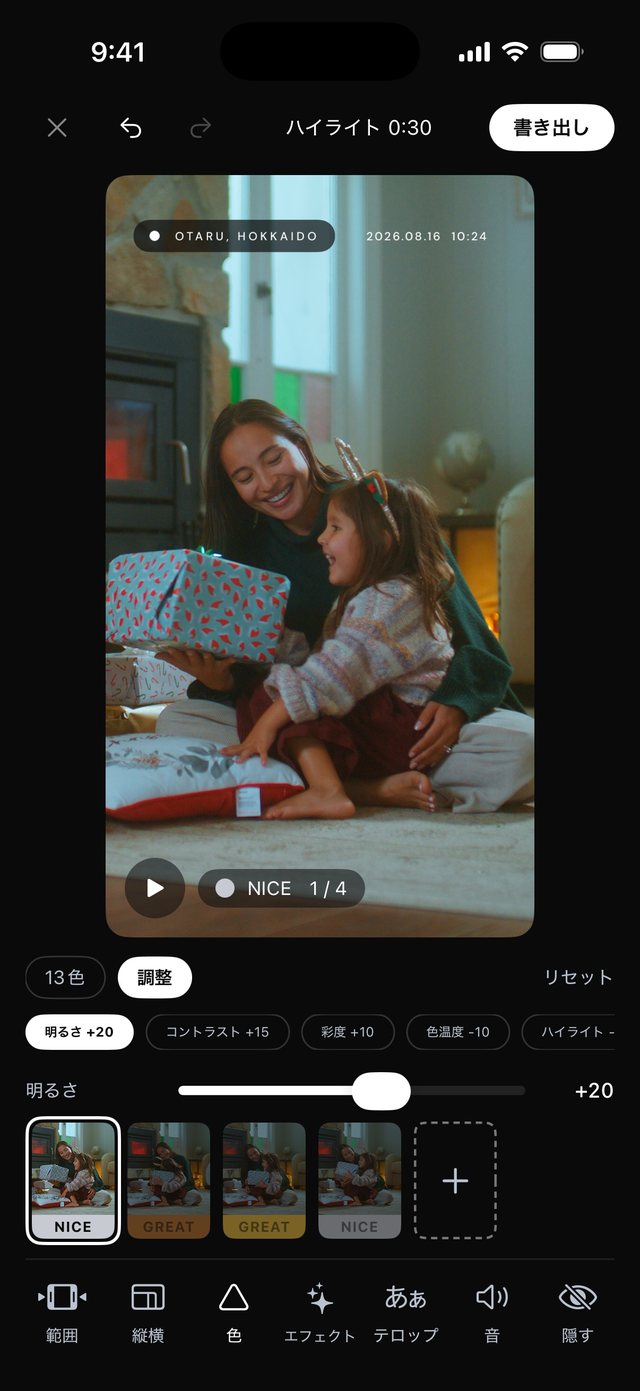
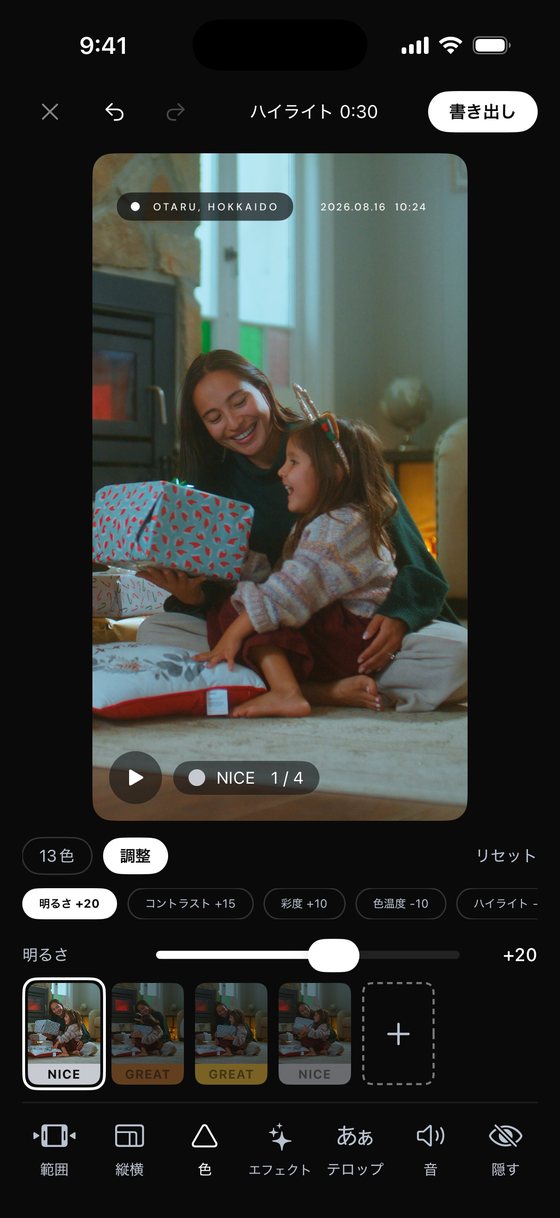
Move brightness, contrast, saturation, temperature, highlights, midtones and shadows after shooting.
Besides sports titles, there are also titles made for vlogs.
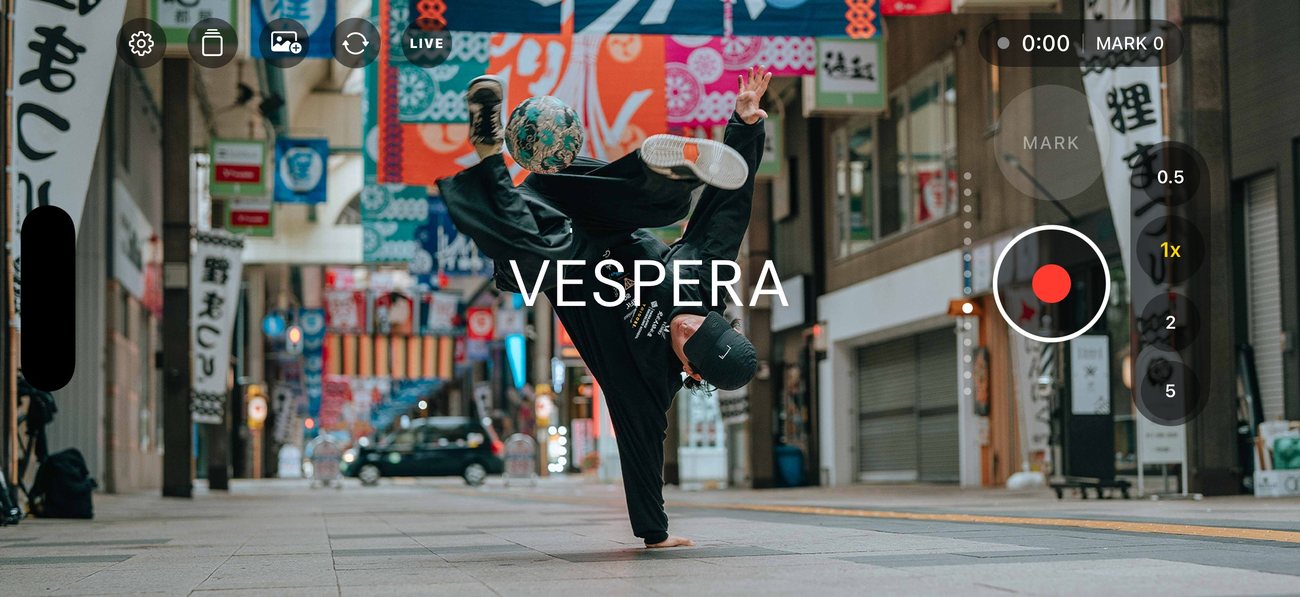
Set shutter, ISO, white balance and focus yourself. Join the clips you shot afterward on a timeline.
Set shutter, ISO, white balance and focus by hand. Lens switching and remaining recording time are supported too.
On an iPhone that supports Apple Log, you can shoot Log in H.265, 10-bit. While shooting, switch the view with “LOG | 709”.
In the editor's “Color”, return to standard color (Rec.709), then apply the 13 colors or color adjustments.
Line up your clips, then split, trim, duplicate and change speed. You can place BGM, voice clips and sound effects on the same screen.
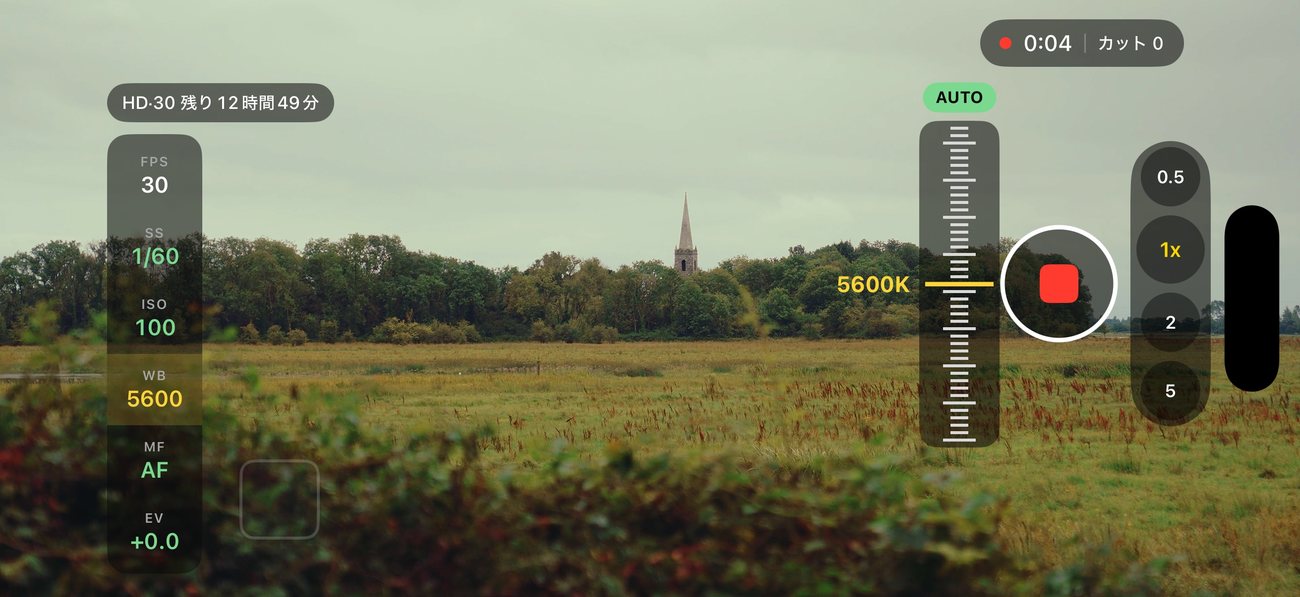
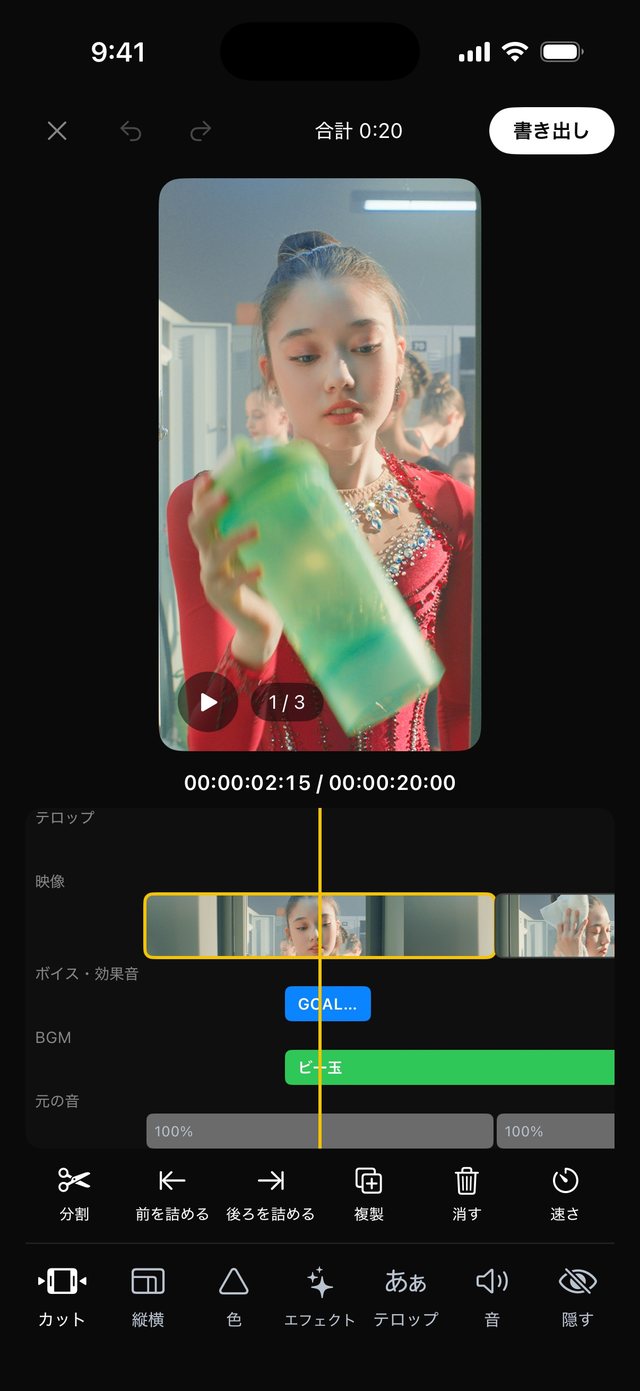
This is the basic flow in SPORTS mode. We kept the screens few so there's less to learn.
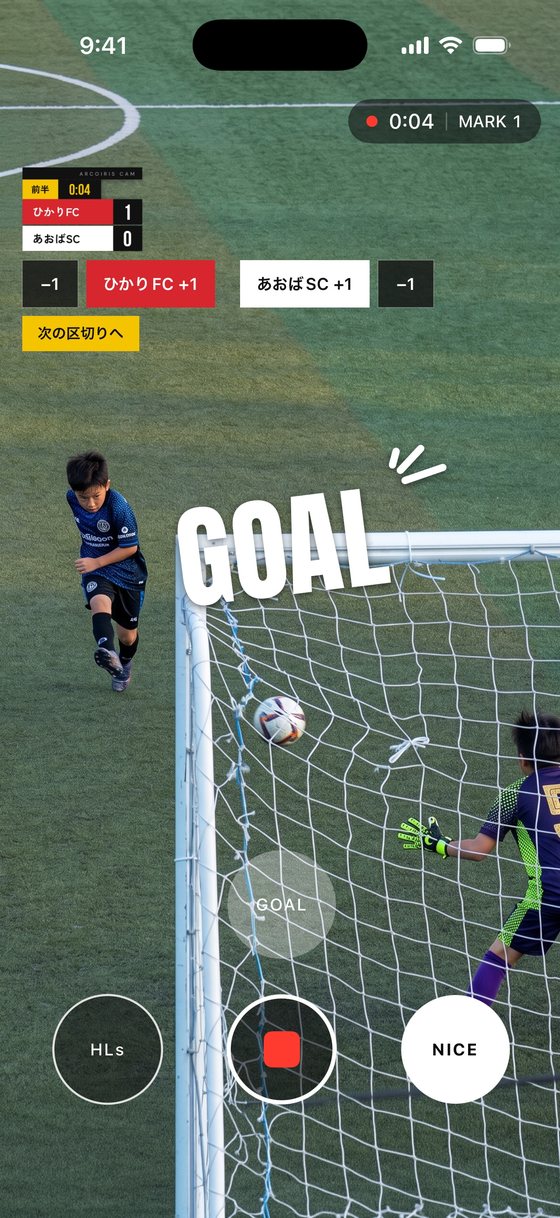
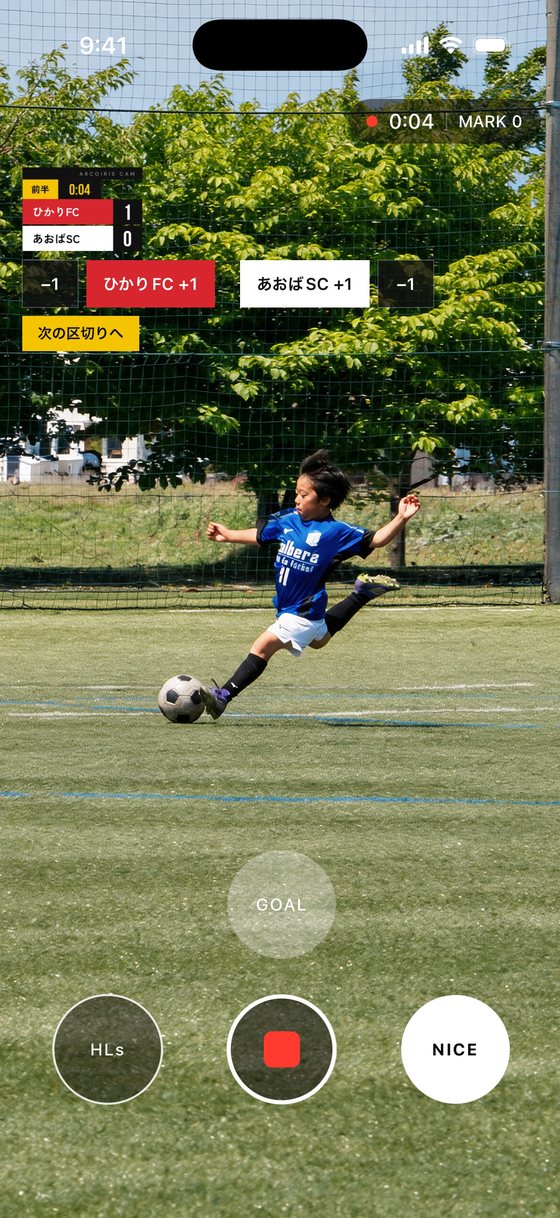
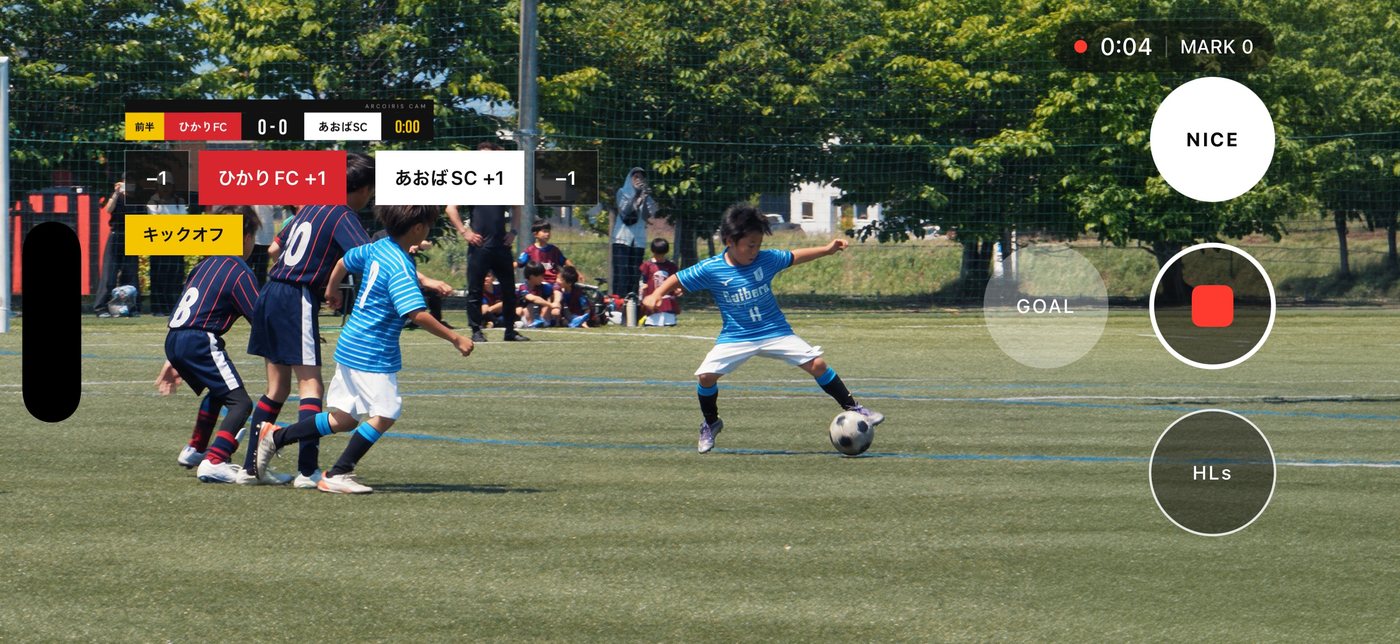
Just pick a sport and the way scores are counted and the shape of the board switch with it. In table tennis and badminton, games advance automatically.
Color, titles and sound are all in the editor. Exported highlights are saved to the Photos app, ready to share.
After mixing the 13 colors, fine-tune further.
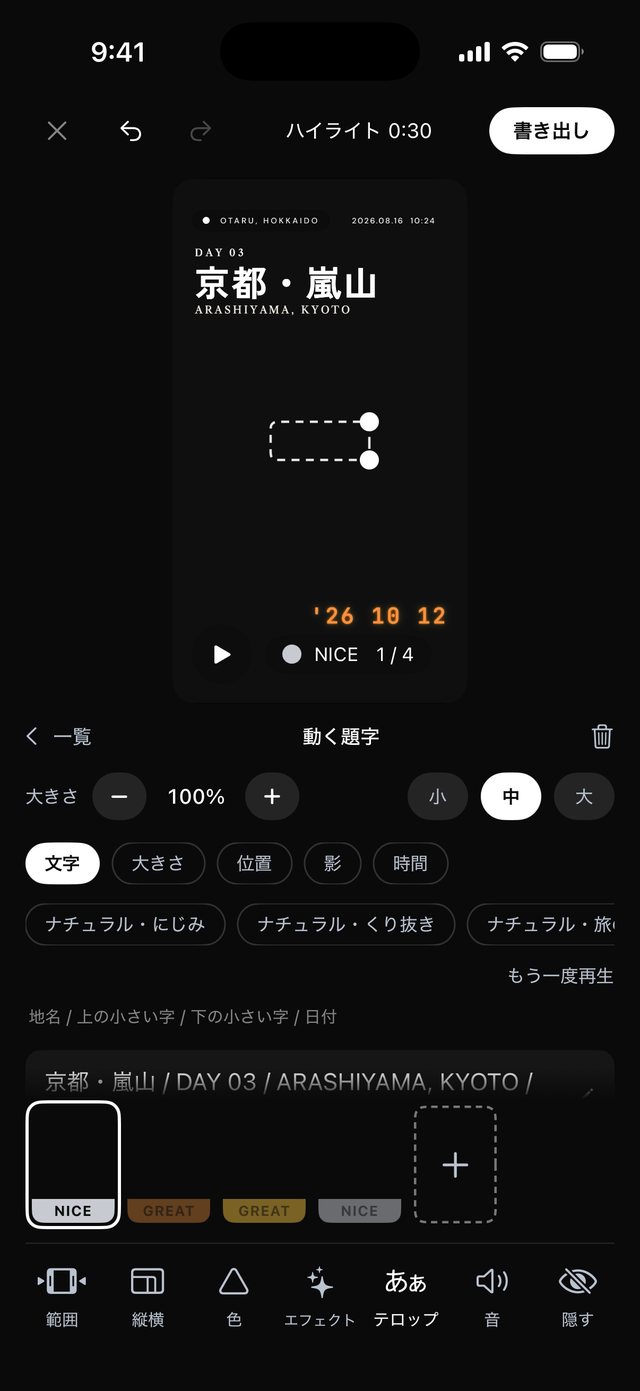
Just pick an animated text title and drop it in. There are more than 30 (13 added in 1.1). Name titles that show a player's name and position at the lower left are available too.
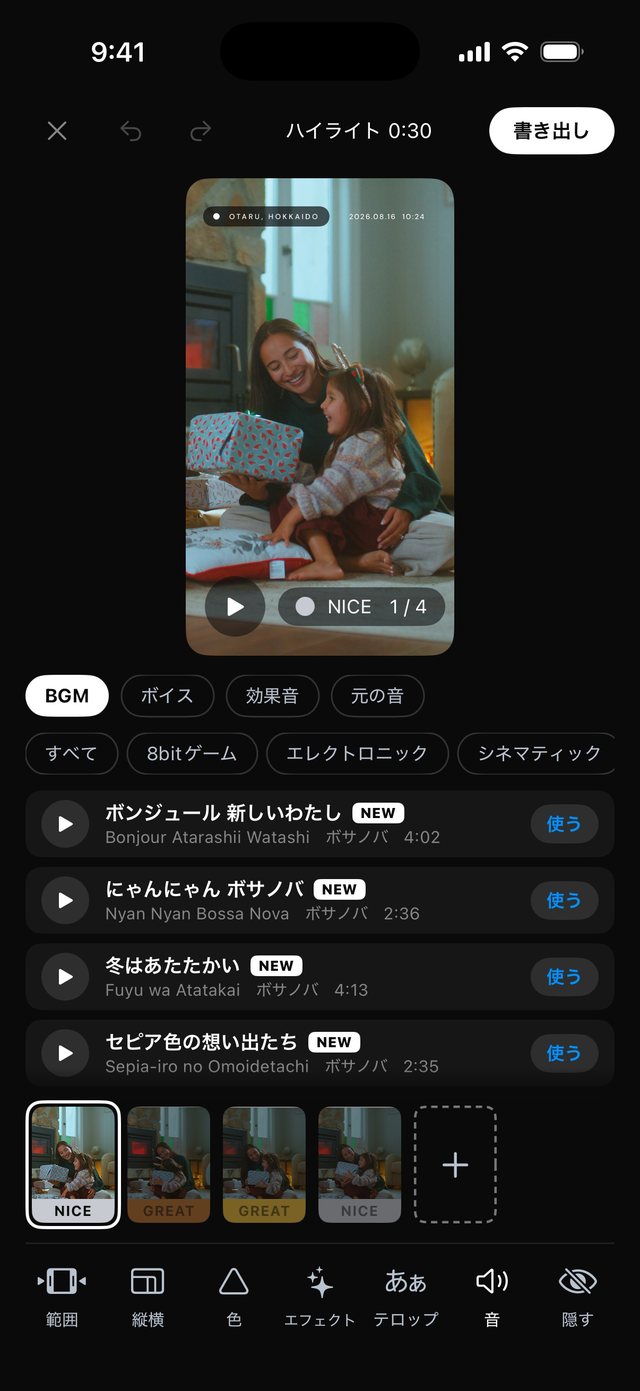
Fetch sounds from ARCOIRIS SOUNDS and use them. Place them wherever you like, and adjust length, volume and fades.
Sounds are downloaded from the site to your iPhone when you use them. They may not download where there is no connection. Once downloaded, a sound is kept on your iPhone. You can check what the sounds may be used for on the ARCOIRIS SOUNDS page.
Switch the shape you export in one tap.
Slow motion, fast-forward, freeze frame, zoom, replay and grain. Tap again to turn an effect off.
Choose from titles for sports and for vlogs.
Exported highlights are saved to the Photos app. Share them right away.
Apply the 13 film colors made for DaVinci Resolve to your footage on the spot. You can settle the color inside your iPhone without moving to a computer.
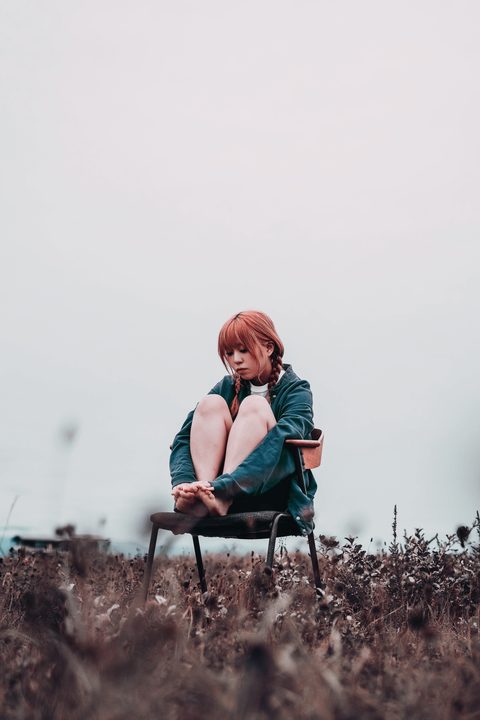
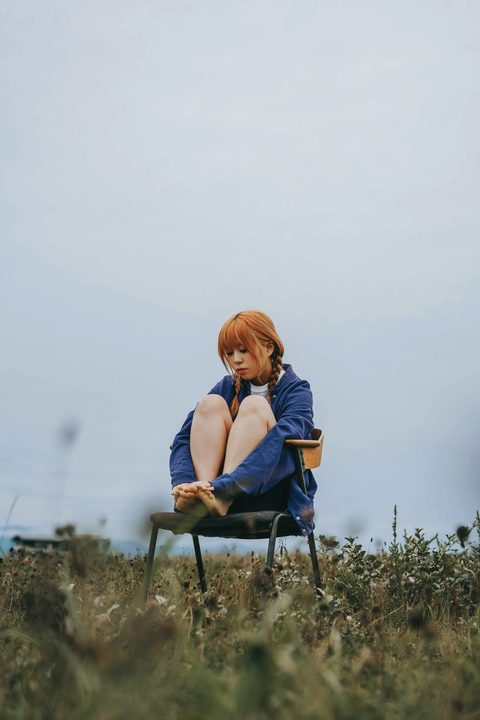
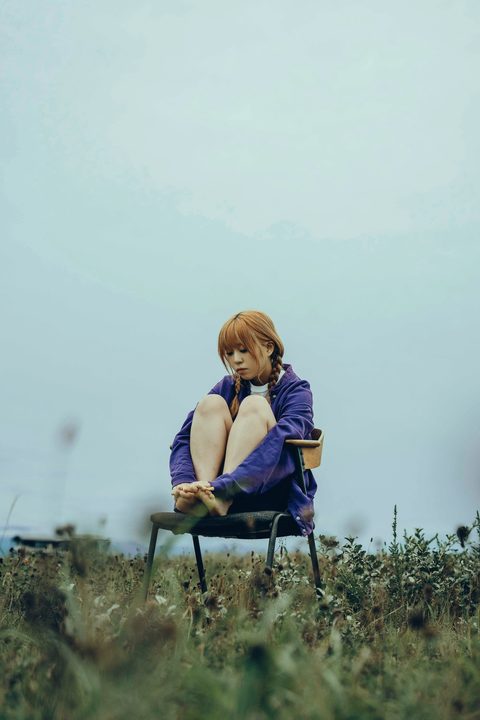



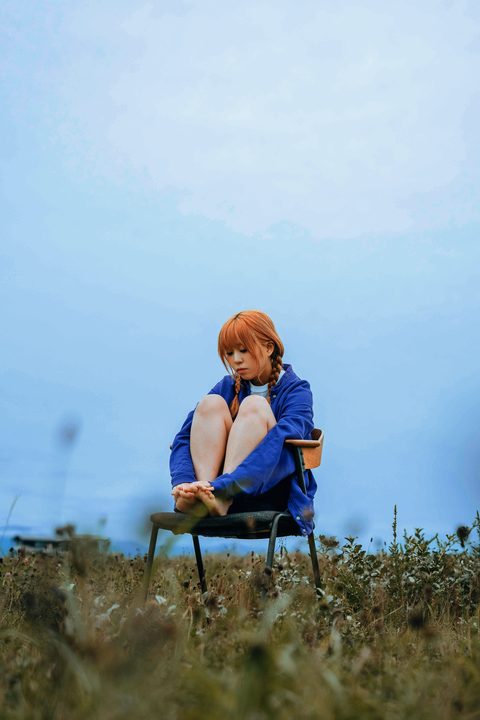

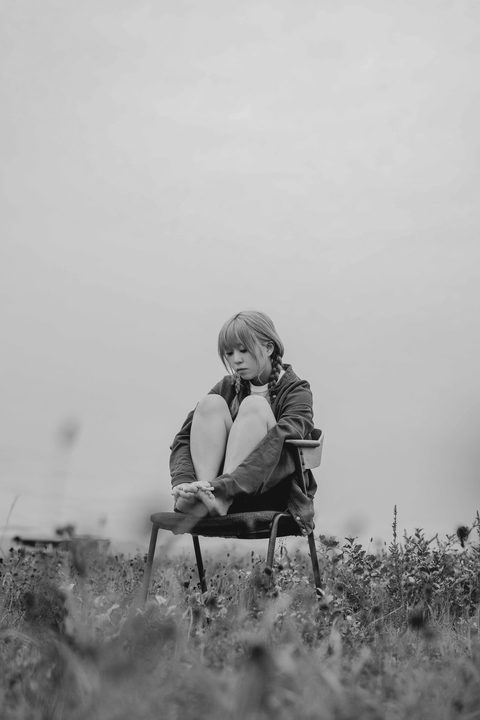
In VLOG mode, just swipe left or right on the camera screen and the look changes, with the names of the 13 colors. You can go back to no color too.
In the editor, mix the 13 colors to make your own.
In the editor, cover faces with mosaic, blur or stamps.
Before posting to social media, hide just the faces of kids you don't want shown.
Choose from mosaic, blur or four kinds of stamps. After hiding, you can switch to a different way.
Circle a face with your finger, then choose how to track it: automatic tracking, tracking by holding your finger down, or stepping forward bit by bit. For fast-moving scenes, tracking by finger is the most reliable.
Face tracking and export both happen inside your iPhone. We never receive your video in order to hide faces.
Shooting in Apple Log (PRO mode) works on iPhones that support Apple Log.
Download for free from the App Store.
The app's interface is available in Japanese and English.
Available now on the App Store (free).
View on the App Store See the guide (Japanese)